View vehicle service history and historical invoices
Service history follows the vehicle so the shop can understand what was completed, when it was completed, and at what mileage. Prior documents and balances remain connected to the customer involved in that visit.
Open a vehicle's history
-
Open Customers and search for the customer, vehicle, VIN, or license plate.
-
Open the correct customer and confirm the vehicle.
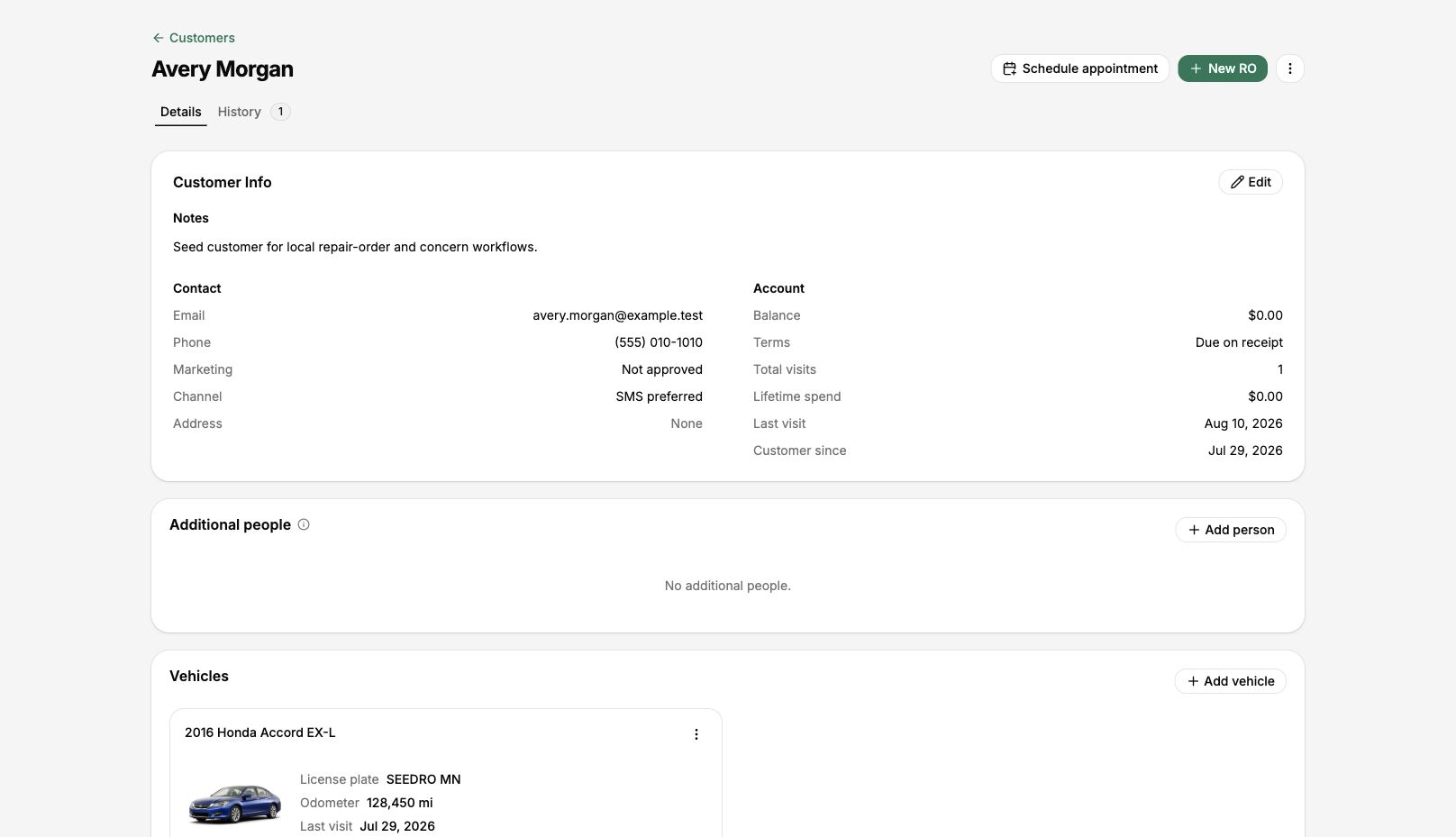
Open the correct customer and confirm the vehicle before reviewing History.
-
Select History to review the customer's visits, or open Vehicle history from an active repair order to focus on that vehicle.
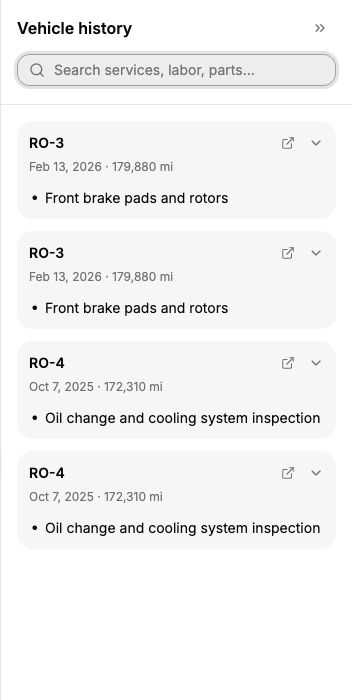
Open Vehicle history from a repair order to review completed services, dates, and mileage.
-
Open the visit or document you need to review.
Understand what counts as service history
- Completed, finalized repair-order visits appear as service history.
- Open work remains part of the active visit until it is completed.
- A visit closed without a sale does not create completed-service history.
- Mileage recorded during each visit stays with the vehicle.
When vehicle ownership changes
| Information | What happens |
|---|---|
| Vehicle identity, mileage, and service history | Moves with the vehicle to the new customer |
| Prior estimates, repair orders, and invoices | Remain connected to the customer who received and authorized that work |
| Prior payments and balances | Remain with the original customer and invoice |
| New work | Uses the vehicle's current customer |
Transfer the vehicle instead of creating a duplicate when ownership changes.
Review a historical invoice
- Open the completed visit from History or find the invoice in Documents.
- Confirm the customer, vehicle, document number, and visit date.
- Review services, totals, authorization, and payment information.
- Print or send the invoice when the original customer needs another copy.
A customer portal link shows one visit only. It does not give the current owner access to another customer's prior invoices.
Start warranty-related work
- Open the completed service from the vehicle history.
- Confirm the earlier work belongs to the same vehicle and qualifies under the shop's warranty process.
- Use the available warranty-service action to connect the new work to the original completed service.
- Review the new estimate or repair order before continuing.
If history looks wrong
- Confirm you opened the correct vehicle and active shop.
- Search by VIN or plate to check for a duplicate vehicle.
- Confirm the visit was finalized instead of left open or closed without a sale.
- Do not merge or transfer records until you understand which customer and documents must remain unchanged.