Add, update, deactivate, or reactivate users
Manage shop users under Configurations > General > Users. Each employee should have their own account so assignments, time records, approvals, and other activity remain attached to the right person.
Roles provide live access. Review Manage Roles and permission overrides before inviting the team.
Review the Users list
The Users list shows everyone who can access the active shop, including an organization-wide Role holder. Search by name, email, or phone, or filter by status and Role.
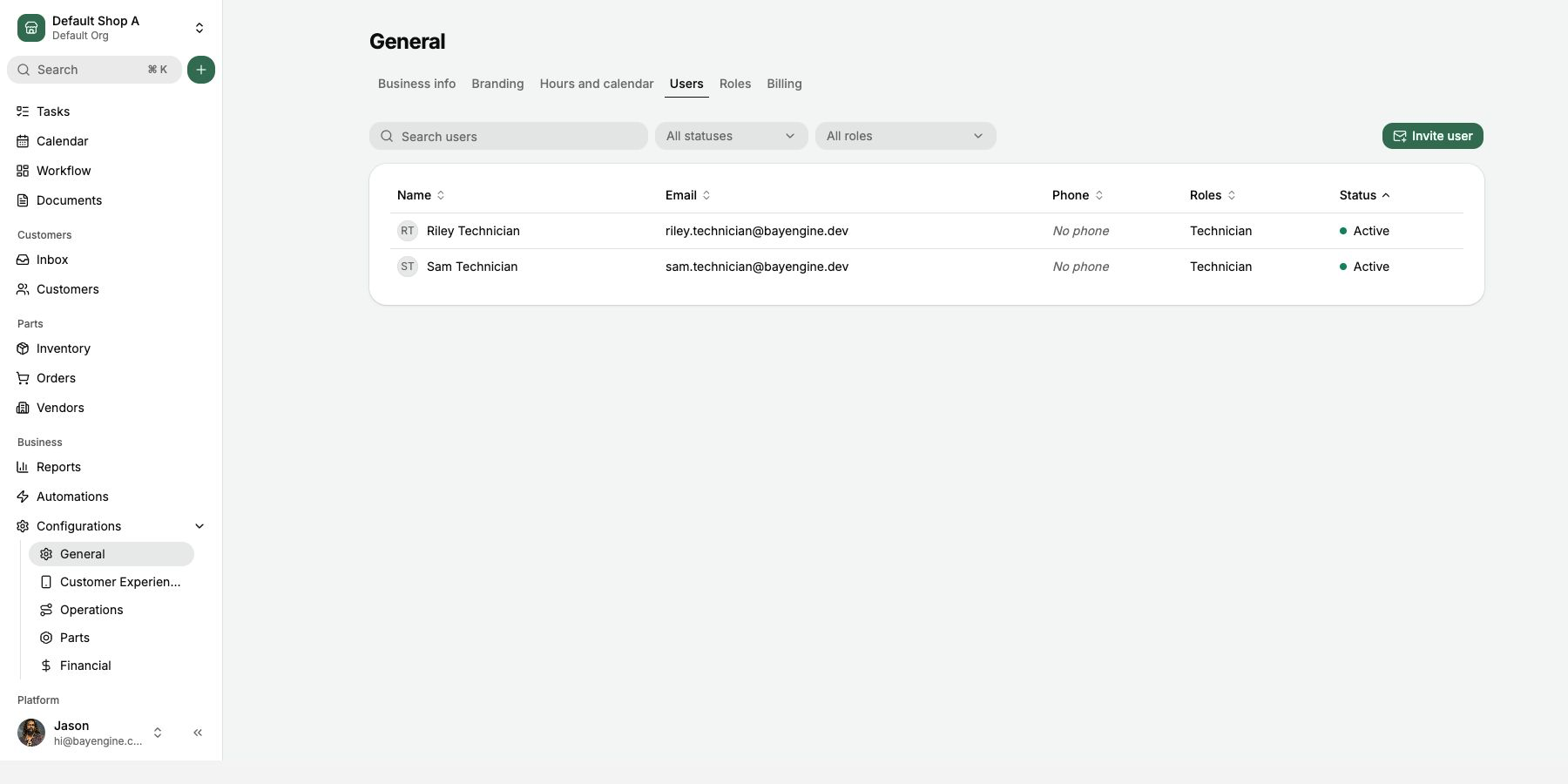
A user may be:
- Active: the person can sign in and use their effective permissions.
- Invite pending: the person has not accepted the invitation.
- Inactive: sign-in is blocked across the account.
Invite someone to one shop
- Open the shop.
- Go to Configurations > General > Users.
- Select Invite user.
- Enter the person's name and email. Phone is optional.
- Select one or more Roles for their work at this shop.
- Select Send invite.
The person opens the emailed link and creates a password. The invitation is valid for 48 hours. If it expires, open the pending user's page and select Resend invite or Copy invite link.
The assigned Roles begin providing their current permissions as soon as the account is active. If a Role definition changes later, the user's access changes with it.
Invite someone across an organization
Use the organization's team settings when a person needs more than one shop:
- Open the shop switcher and select the organization.
- Open the organization's team page.
- Select Invite user.
- Enter the person's information.
- Select the Role or Roles.
- Choose every shop or select all shops for organization-wide access.
- Send the invitation.
Use Organization administrator only for someone who should have full access to every shop and organization setting.
One email address has one BayEngine account. If BayEngine says the address already exists, add the existing person to the needed shop or organization instead of creating another account.
Update a user's information
Open the person from the Users list. In Employee Information, select Edit to change their name, phone, or Active status.
An administrator cannot change the person's email on this page. The user can change their own account information from the user menu at the bottom left.
In the Roles card, select Edit, change the Roles for this shop, and save. The effective permissions update with the new Roles. Organization-wide Roles appear separately and must be changed from organization settings.
Add or remove a permission exception
Use the user's Permissions tab only when their Role is close but not exact. An added override grants one action; a removed override blocks one action. See Manage Roles and permission overrides before creating an exception.
Deactivate someone who leaves
Deactivate the account when the person should lose access everywhere:
- Open the person from Configurations > General > Users.
- Select Edit in Employee Information.
- Clear Active.
- Select Save changes.
Deactivation blocks the account. It does not remove historical assignments, time entries, payments, or other activity. Roles and permission overrides remain attached so the account can be reactivated later.
You cannot deactivate yourself. Ask another administrator to do it.
Remove someone from one shop
Use Remove from shop when the person should keep their BayEngine account and access to other shops.
Removing a user deletes their Roles and permission overrides at the active shop. Their historical work stays attached to their name. You cannot remove yourself, and an organization-wide Role must be changed at organization scope instead.
Reactivate a returning user
- Filter the Users list to include inactive users.
- Open the person.
- Select Edit in Employee Information.
- Select Active and save.
- Review the person's Roles and permission overrides before they resume work.
The person signs in with the existing password. If needed, use the reset flow in Sign in, reset a password, and resolve account-access problems.
If an access change does not appear
Normal requests use the new access immediately. Live-updating pages may keep the previous access until the session refreshes, which can take about 15 minutes. Have the person sign out and sign back in to apply the change right away.