Manage Roles and permission overrides
Roles give people the access they need for a job. A permission override adds or removes one action for one person when their Role is not an exact fit.
Start with Roles and use overrides only for exceptions. This keeps access consistent when people join, change jobs, or work at more than one shop.
Understand how access works
BayEngine has four Roles:
| Role | Recommended use |
|---|---|
| Technician | Perform Inspections, update assigned work, and record time |
| Service advisor | Manage customers, appointments, estimates, repair orders, communication, authorizations, and payments |
| Shop administrator | Manage one shop's team, settings, workflow, and day-to-day operations |
| Organization administrator | Manage every shop and organization setting with full access |
Your organization can change what each Role grants. Technician, Service advisor, and Shop administrator definitions can also have a shop-specific version when that shop needs different access.
A Role assignment has a scope:
- This shop applies only at the selected shop.
- Organization-wide applies at every current and future shop in the organization.
A person can hold more than one Role. BayEngine combines the permissions from every Role that covers the active shop, then applies that person's permission overrides.
Review a Role before assigning it
- Open Configurations > General > Roles.
- Select Technician, Service advisor, or Shop administrator.
- Review the resource rows and the Read, Create, Update, and Delete actions.
- If you are in organization view, also review Organization administrator. It grants full organization access and cannot be reduced.
Editing a Role changes effective access for every current user who holds that Role at the affected scope. Review the entire grid before changing it.
Customize a Role for one shop
At a shop, the Roles page shows whether the Role definitions come from the organization or the shop.
- Open the shop and go to Configurations > General > Roles.
- Select the Role you want to change.
- Select or clear the required actions.
- Confirm the source badge changes to a shop override.
- Review another Role tab if it also needs a shop-specific definition.
The first edit gives the shop its own complete copy of all Role definitions. Later organization changes do not reach that shop. Select Reset to organization default to discard the shop copy and follow the organization definitions again.
For more about shared settings, see Use organization defaults and shop overrides.
Assign Roles to a user
- Open Configurations > General > Users and select the person.
- In the Roles card, select Edit.
- Select the Roles that match the person's work at this shop.
- Select Save changes.
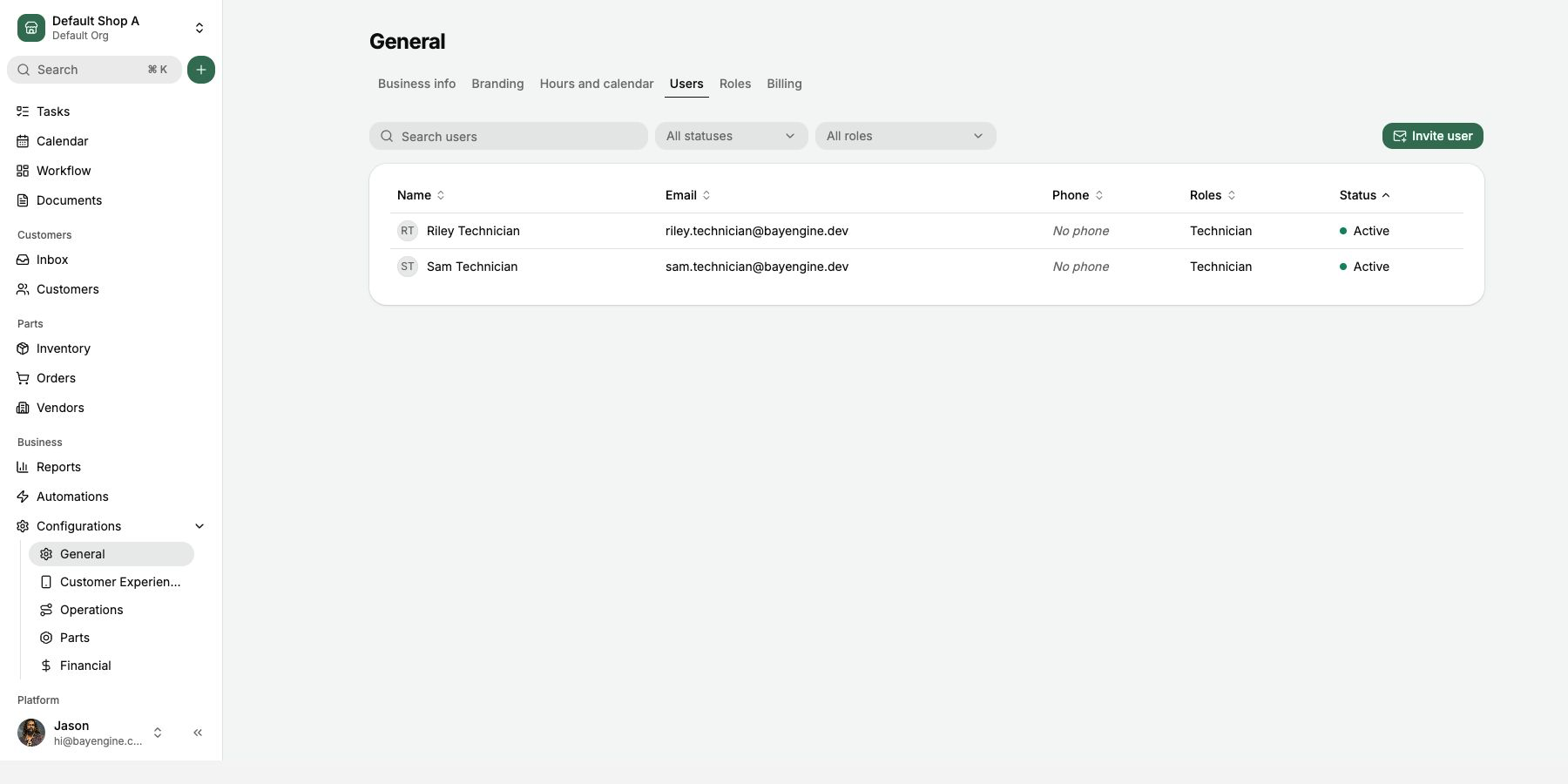
Assign organization-wide Roles from the organization's team settings. An organization-wide Role covers every shop; it cannot be removed from a single shop. Remove or change it at organization scope.
Role changes affect access immediately for normal requests. Live-updating pages may keep the previous access until the person's session refreshes, which can take about 15 minutes. Have the person sign out and sign back in when a change must take effect immediately.
Use a permission override for one person
Open a user and select Permissions. The Effective Permissions grid shows where access comes from:
- A Role grants the action.
- An added override gives this person an action their Roles do not grant.
- A removed override blocks this person from an action their Roles grant.
- An organization-wide result is edited in organization settings.
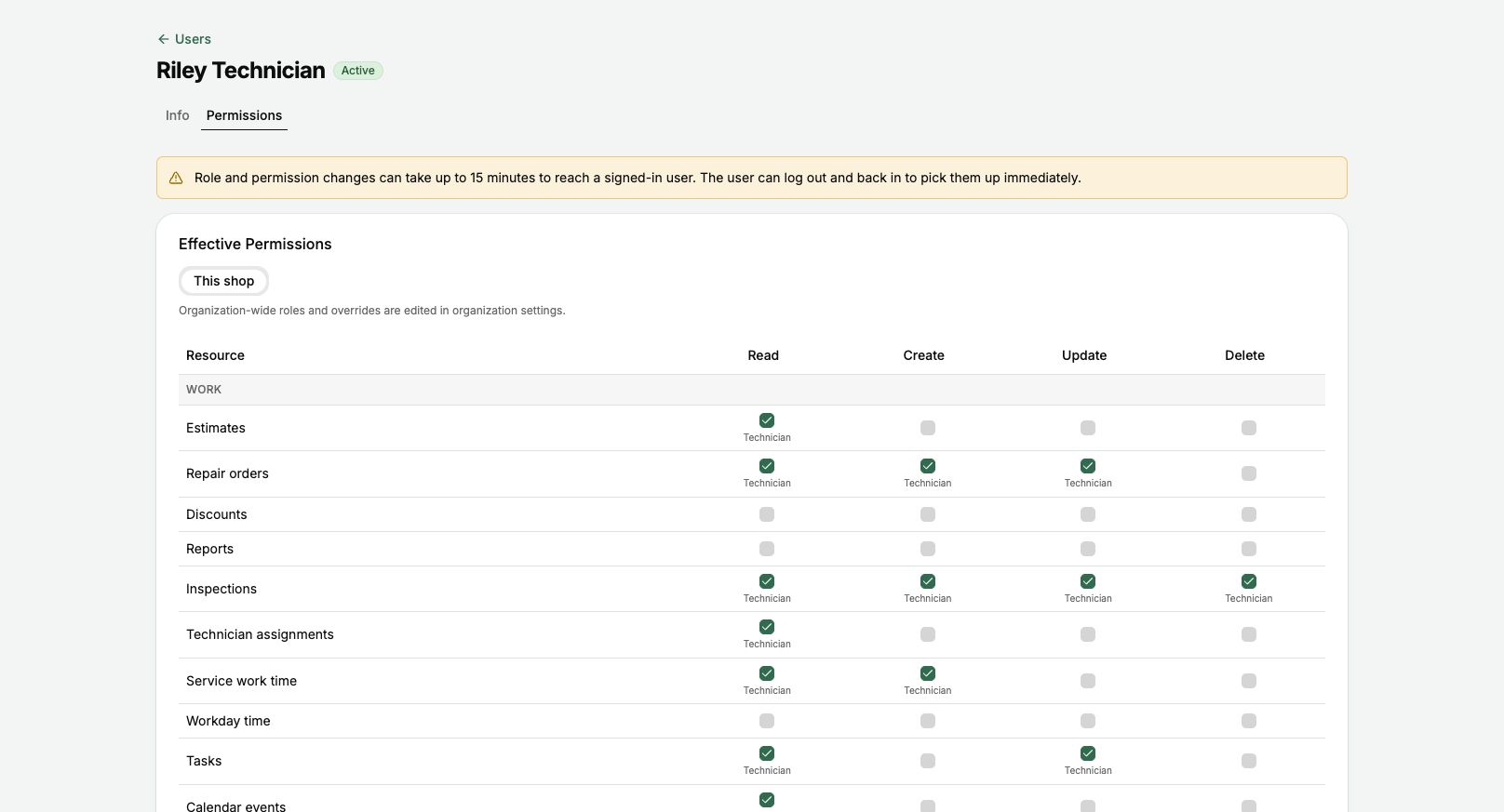
To change an exception:
- Select This shop or Organization-wide when both scopes are available.
- Find the resource and action.
- Select an empty action to add it for this person.
- Select an action supplied by a Role to remove it for this person.
- Select an added or removed override again to remove the exception and return to the Role result.
A removed override always wins, even if another Role or a broader scope would otherwise grant the action. Use removed overrides carefully.
Keep Read access with write actions
Read access is required before someone can Create, Update, or Delete a resource. If you add a write action without Read, BayEngine prompts you to add Read too. Removing Read also prevents the related write actions from being useful.
Use the smallest access that lets the person do the job:
- Read to view records
- Create to add records
- Update to change records
- Delete only when the person should be able to remove records
Recommended starting access
These recommendations are a starting point, not a fixed rule:
- Give an owner who manages every location Organization administrator.
- Give a location manager Shop administrator at that shop. Add Service advisor if the manager also writes and sells work and those actions are not already in the shop's administrator definition.
- Give front-counter staff Service advisor.
- Give technicians Technician. Add only the parts, Inventory, or purchasing exceptions required by that shop's process.
- For a dedicated parts person, start with the closest operational Role and add only the Vendor, Inventory, purchasing, and return permissions required.
Review access with a real example from that person's work before launch.
Troubleshoot access
If someone cannot open a page or complete an action:
- Confirm they are active and have a Role covering the current shop.
- Open their Permissions tab and find the exact resource and action.
- Look for a removed override at the shop or organization scope.
- Confirm Read is present when the action is Create, Update, or Delete.
- Have the person sign out and sign back in.
- If the result is still wrong, email hi@bayengine.com with the user, shop, page, and action they are trying to complete.
Do not share passwords or let employees use one another's accounts to work around a permission problem.