Complete your go-live readiness check
Use this checklist after BayEngine completes the final migration pass and before your team starts live work. The shop owner or launch lead should work through it with the people who handle the counter, technicians, parts, and bookkeeping.
If you are still preparing source data, start with Move your data to BayEngine.
1. Confirm the final migration pass
- BayEngine has confirmed that the final source capture is complete.
- The team knows the exact cutover date and time.
- Staff will enter all new work in BayEngine after that point.
- The old system will stay available for about one week for verification only.
- Any work entered while the final import was running has been added to BayEngine.
2. Check customers, vehicles, and history
- Search for several returning customers by name, phone number, and email.
- Confirm customers with multiple vehicles still have the right vehicles.
- Open vehicle service history and compare several past visits with the old system.
- Review additional people and communication details on sampled customers.
- Report duplicates or missing relationships to BayEngine before merging or recreating many records.
3. Check the calendar and open work
- Compare every upcoming appointment with the old calendar.
- Confirm the appointment date, time, customer, vehicle, and Reason For Visit.
- Review open estimates and repair orders, including authorizations, assigned staff, parts status, and Promise Time.
- Confirm the team knows which system owns each in-progress job.
4. Check shop settings
- The Public name, phone, email, address, website, timezone, and distance unit are correct.
- Business hours, closures, and online-booking hours are correct.
- Labor rates, labor markup, Part markup, fees, discounts, and taxes have been reviewed.
- The default Tax Configuration is confirmed.
- Payment methods and customer-document settings match the shop's process.
- Workflow Stages, invoice-finalization requirements, Service Categories, Canned Services, and Inspection Templates are ready.
Use Set up and launch your shop in BayEngine if any of these settings still need work.
5. Check users and outside services
- Every current employee has their own BayEngine account.
- Each person has the right Role at the right shop or organization scope.
- Any necessary per-user permission overrides have been reviewed.
- A sample technician, service advisor, and administrator can open the pages needed for their work.
- CARFAX, PartsTech, messaging registration, and other outside services needed on day one are connected or have a documented temporary process.
If a permission change does not appear on a live-updating page, have the user sign out and sign back in.
6. Check Inventory and financial totals
- Sampled Vendors have the correct account information.
- Sampled Inventory Parts have the correct part numbers, costs, locations, and quantities.
- Open Purchase Orders and unreceived parts have a clear owner.
- Imported payments and customer balances match the agreed source report.
- Sales, Payments, Taxes, Receivables, and Technician reports have been compared with the agreed source period where applicable.
- Every known difference is either corrected or recorded in the migration thread with an owner.
7. Run a complete practice visit
- Create or open a test customer and vehicle.
- Create an appointment or repair order.
- Add a Canned Service and verify labor, parts, fees, discounts, and tax.
- Send the estimate and record a test authorization.
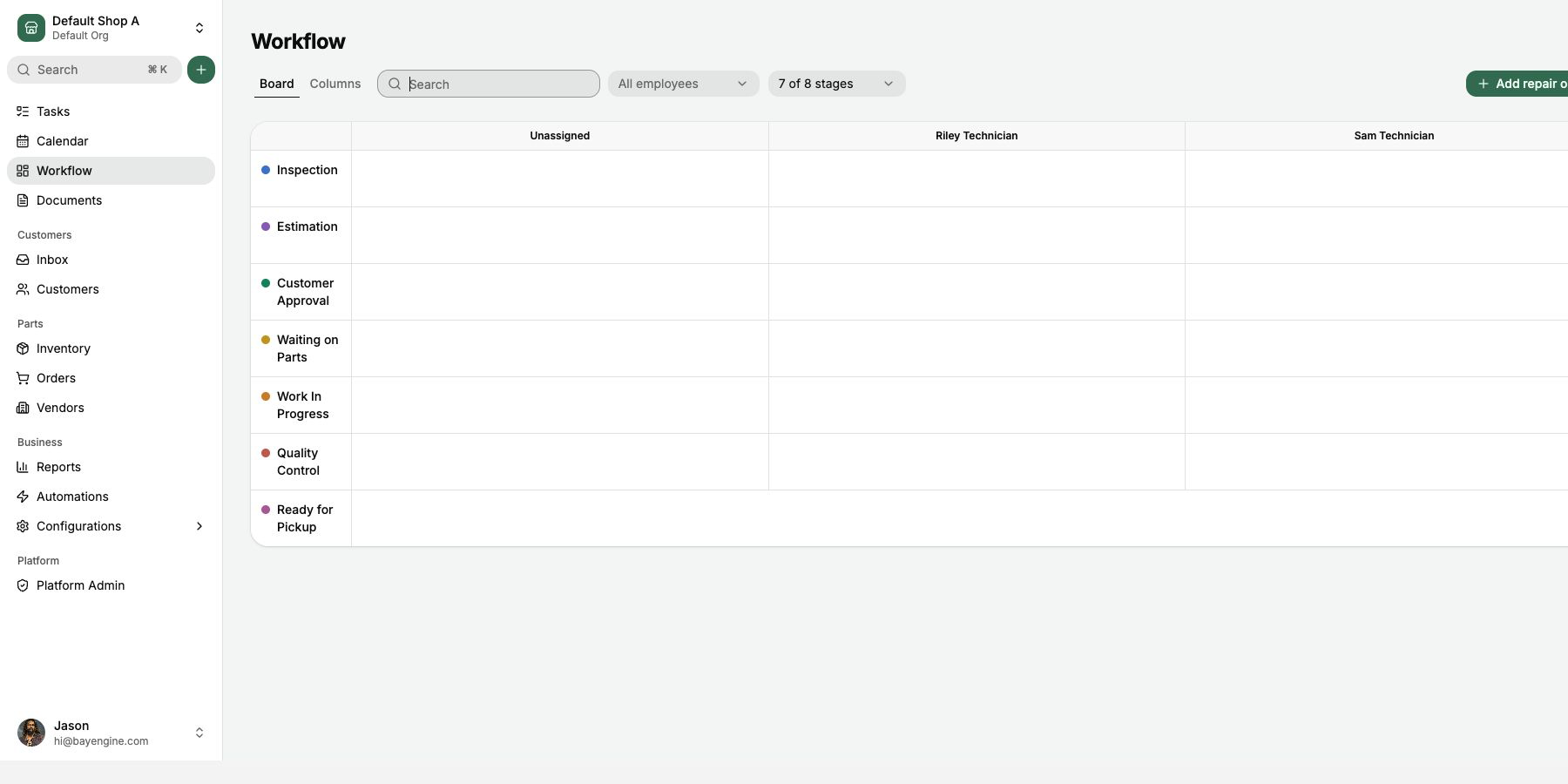
- Assign the work, complete an Inspection, and move the repair order through its Workflow Stages.
- Record a test payment and finalize the Invoice.
- Confirm the Customer Portal, customer document, and Reports show the expected result.
- Delete the test records or clearly identify them as test data before live work starts.
8. Approve the launch
Reply to the migration email thread or email hi@bayengine.com with one of these results:
- Approved: the checklist passes and the shop is ready to start live work.
- Approved with noted follow-up: the shop can work safely, and the email lists each non-blocking follow-up with an owner.
- Not ready: a missing or incorrect item could affect appointments, customer records, open work, Inventory, payments, taxes, or reporting.
Include the shop name, planned launch time, person approving the result, and any remaining differences. BayEngine will keep that reply with the migration record.
After launch
For the first week, use the old system only to verify history. Enter all new work in BayEngine. Report migration differences promptly so BayEngine can compare them with the source capture.